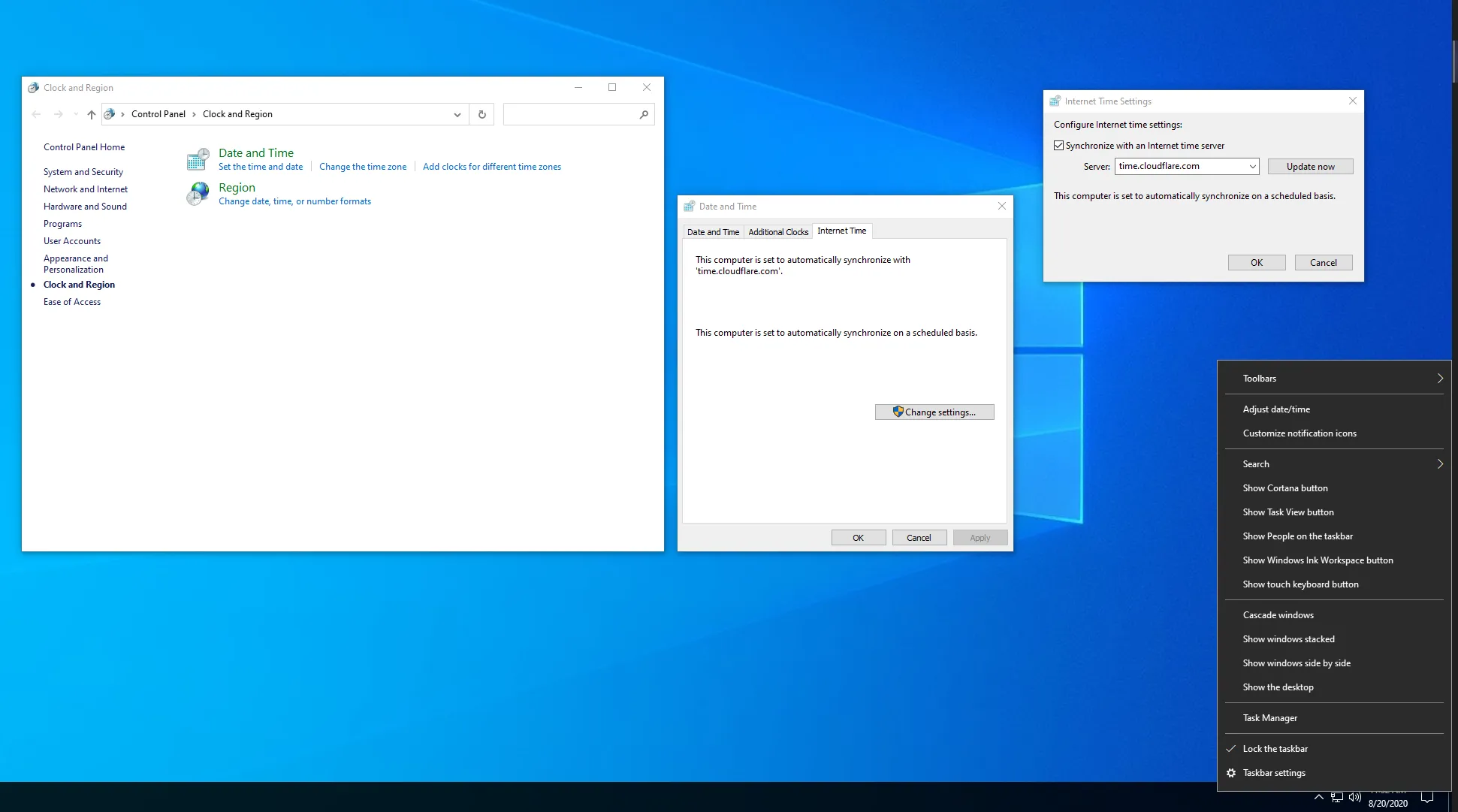
Updating Windows Time Servers
12/15/2023

✏️ Summary
So maybe it’s my environment or whatever, but I’m constantly having issues with the default Windows time-servers updating. At first, one might think this isn’t really that big of a deal. However, not having an accurate date and time can cause many problems.
- For example, when I was trying to connect with friends in an Xbox Live party, it would continue to fail. At first, I thought it was various other issues. After a bit of troubleshooting, I noticed my system time was way off. Then, when I tried to update it, it just kept failing with both of the defaults
time.windows.comandtime.nist.gov. - Another example was when I attempted to run a basic utility application that authenticates with AWS. It also failed due to the timestamp being off during credential signing. Probably the same issue that caused the Xbox party to fail.
🛠️ How-to
Launch the registry editor by using the keyboard shortcut Windows Key + R to launch the run command, or simply just hit the Windows Key. Then type regedit and enter. Then run the Registry Editor as Administrator.

Next, navigate to the following path
HKEY_LOCAL_MACHINE\SOFTWARE\Microsoft\Windows\CurrentVersion\DateTime\Servers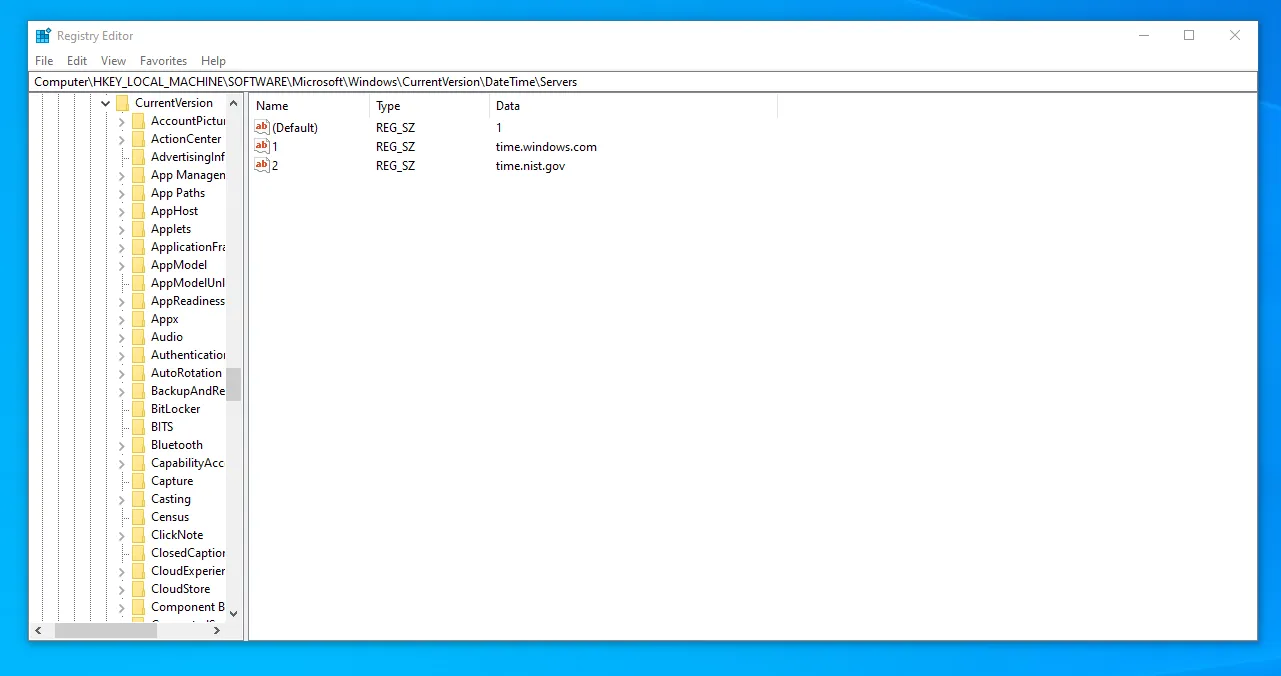
Now we’re going to update the time-servers to companies that are more likely to have stable infrastructure. I think Cloudflare is an awesome company and a fantastic DNS provider. Then Google is pretty legit, so they are also unlikely to fail. So we just need to update the values as shown below to make sure we have time.cloudflare.com and time.google.com.
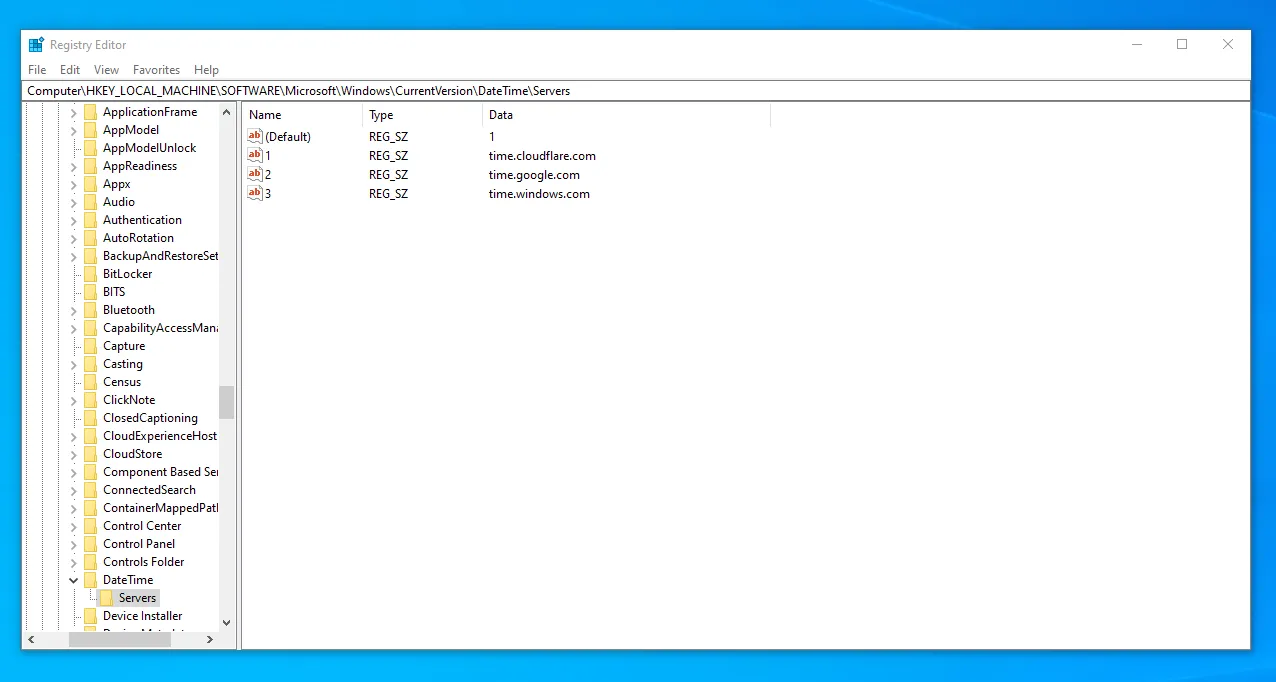
Then, once we close regedit, we can check out our time settings to make sure everything is good to go.